Urgent macOS Security Alert: Patch Major Screen Sharing Flaw to Prevent Unauthorized Remote Access
Apple releases urgent security updates for macOS Tahoe, Sequoia, and Sonoma to fix a major screen sharing flaw that allows unauthorized remote access.
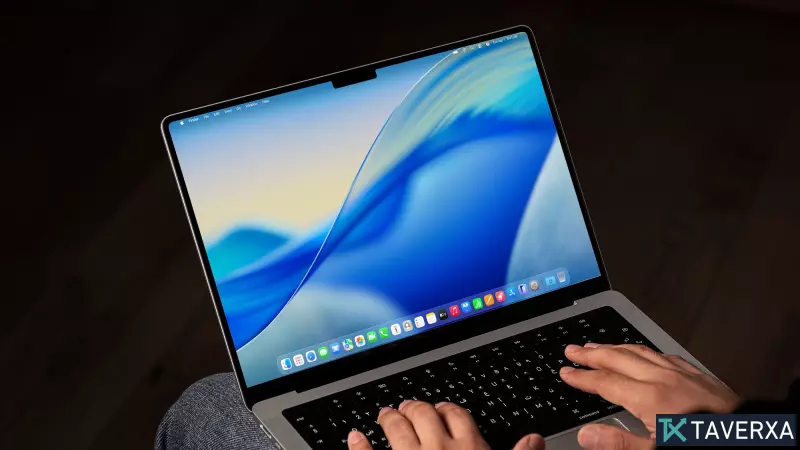
Critical Vulnerability Exposed in macOS Screen Sharing
Apple has issued an urgent security warning for Mac users, urging them to update their operating systems immediately to close a significant vulnerability within the Screen Sharing feature. This flaw could potentially allow a malicious actor on the same network to bypass authentication protocols and gain remote access to a user's computer without possessing valid credentials.
The vulnerability is centered around an authentication issue related to state management. If exploited, an attacker could initiate a screen-sharing session silently, granting them the ability to view the user's desktop in real-time, open private files, launch applications, and execute various unauthorized actions on the machine.
Which macOS Versions are Affected?
To combat this threat, Apple has deployed "important security fixes" across three different versions of macOS. Users should check their current version and update to the following releases immediately:
- macOS Tahoe: Update to version 26.6.1
- macOS Sequoia: Update to version 15.7.9
- macOS Sonoma: Update to version 14.8.9
Apple recommends these updates for all users, regardless of whether they actively use the Screen Sharing feature, as the underlying flaw exists within the system's security architecture.
Is Your Data at Risk?
While there are currently no reports of this specific bug being exploited "in the wild," the severity of the potential impact—total remote control of a device—makes it a high-priority fix. The risk is particularly elevated for users on public Wi-Fi networks or shared corporate environments where attackers may have easier access to the local network.
Step-by-Step: How to Secure Your Mac
To protect your device, follow these steps to ensure your system is current:
- Click the Apple Menu () in the top-left corner of your screen.
- Select System Settings (or System Preferences).
- Navigate to General and then click on Software Update.
- If an update is available for your version of macOS, click Update Now or Upgrade Now.
Proactive Security Tips for Mac Users
Beyond this specific patch, security experts recommend several habits to harden your Mac's defenses:
- Enable Automatic Updates: Ensure that "Install Security Responses and system files" is toggled on to receive critical patches without manual intervention.
- Practice Screen Sharing Caution: Only share your screen with trusted partners. Before granting permission, close any windows containing sensitive information like passwords, bank statements, or private messages.
- Verify Connection Status: Always double-check that screen sharing is fully disabled after a remote session has ended.
- Layer Your Defense: While Apple's built-in Gatekeeper is powerful, consider using a reputable Mac antivirus solution for an added layer of protection against malware and zero-day exploits.