Stop Your Samsung TV From Waking Up Automatically: A Guide to Reducing Energy Waste
Is your Samsung TV turning on by itself? Learn how to disable motion detection and presence sensors to save energy and lower your electric bill.
The Hidden Energy Drain in Your Living Room
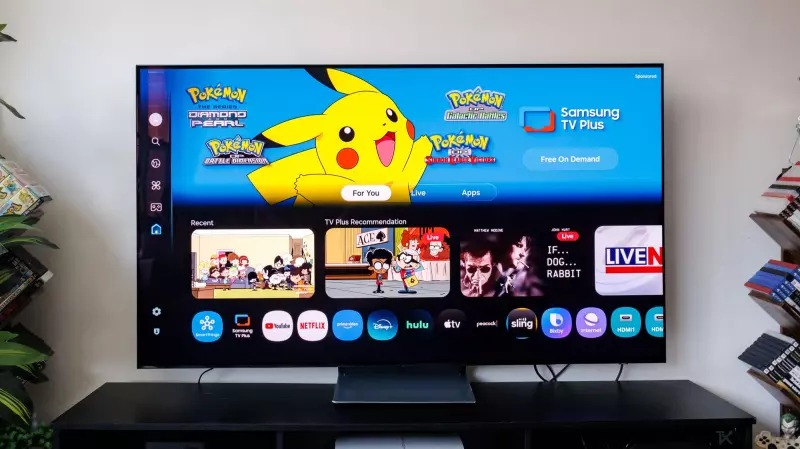
Most modern homeowners are diligently tracking their energy consumption, switching to LED bulbs and smart thermostats to keep electricity bills in check. However, a common culprit often goes unnoticed: the 'overly smart' features of a high-end television. Many Samsung TV owners have reported a frustrating phenomenon where their screens unexpectedly wake up, switching into Art Mode or a standard home screen, even when no one is attempting to use the device.
This behavior is typically caused by built-in motion and presence detection sensors. While designed for convenience—allowing the TV to greet you as you enter the room—these sensors can be triggered by pets, passing shadows, or simple movement in the house. This results in a constant, quiet drain on power, potentially driving up your monthly electric bill without providing any real benefit.
Step 1: Disabling Motion and Presence Detection
For the majority of Samsung models, including the popular OLED and QLED series, the primary trigger is located within the Intelligent Mode settings. To regain control over your power usage, follow these steps:
- Open the Settings menu using your remote.
- Navigate to General & Privacy.
- Select Intelligent Mode Settings. (Note: On older models, this may be listed under Eco Solution or Power and Energy Saving).
- Locate the toggle for Motion Detection, Presence Detection, or Auto Power On with Motion Sensor and switch it to Off.
Step 2: Hunting Down Accessibility-Linked Sensors
If your TV continues to activate on its own, it may be because the motion sensor is tied to accessibility features rather than general power settings. This is a common quirk in specific Samsung firmware versions that makes the setting easy to overlook.
To ensure these are disabled:
- Return to the Settings menu.
- Select General and then navigate to Accessibility.
- Scroll through the accessibility list to find the Motion Detection toggle and ensure it is deactivated.
Bonus Tip: Stopping the 'Smart Home' Wake-Up Call
If the screen is still powering on, the issue might not be a physical sensor but a digital trigger from your smartphone. If you use the SmartThings app, your TV may be configured to wake up the moment your phone connects to the local Wi-Fi network or enters a specific proximity.
To disable this network-based trigger:
- Go to Settings > Connections > Network.
- Enter Expert Settings.
- Turn off Power on with Mobile, Wake on LAN, and Allow IP Control Devices.
By taking these three steps, you can prevent your Samsung TV from functioning as a motion-activated lamp and ensure your home remains energy-efficient.