I Used ChatGPT to Audit My iPhone Privacy: 7 Crucial Settings I Found
I asked ChatGPT to audit my iPhone's privacy settings. It uncovered 7 crucial features that significantly improve data security and personal privacy.
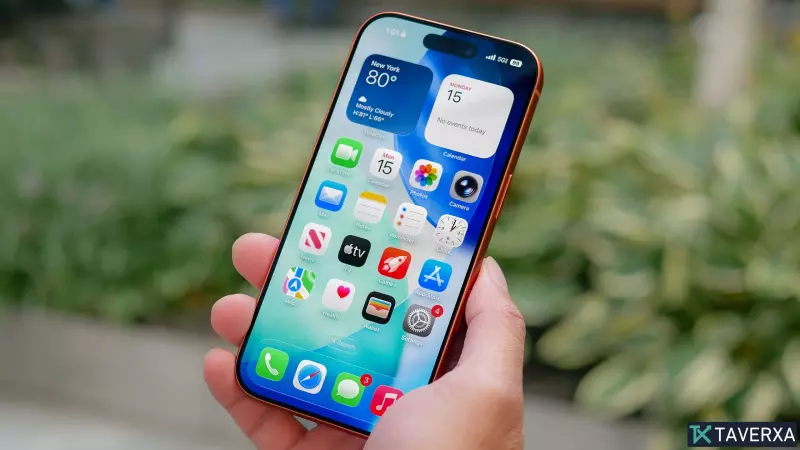
In an era of increasing digital surveillance and data tracking, keeping your personal information secure is more important than ever. While many iPhone users believe that simply having an Apple device is enough to guarantee privacy, there are several layers of protection hidden within iOS that often go ignored. I decided to challenge ChatGPT to act as a security auditor for my iPhone. I asked: 'I'm an iPhone user who often works in public spaces, travels frequently, and shares my device with family. What privacy settings should I enable to protect my data?' Here are the seven essential settings that were uncovered, along with the logic behind why they are critical.
1. Secure Your Notifications
It is common to have your Lock Screen display incoming messages or bank alerts, but this poses a significant risk if you leave your device unattended. By navigating to Settings > Notifications > Show Previews and setting it to 'When Unlocked,' you ensure that sensitive information remains hidden until your device is authenticated via Face ID.
2. Lock Sensitive Apps with Face ID
Apple recently introduced a powerful feature that allows you to lock individual apps. By long-pressing an app icon and selecting 'Require Face ID,' you can restrict access to sensitive applications like Photos or Notes, providing a vital safeguard if someone else gains access to your unlocked phone.
3. Tighten Location Permissions
Many apps request 'Always' access to your location, even when it isn't strictly necessary. Go to Settings > Privacy & Security > Location Services to audit which apps are tracking you. Switching unnecessary apps to 'While Using the App' significantly reduces your data footprint.
4. Utilize Safety Check
Located under Settings > Privacy & Security, the 'Safety Check' feature is an often-overlooked tool. It allows you to quickly audit who has access to your location and shared information, making it easy to revoke permissions or reset privacy settings in one sweep.
5. Audit Camera and Microphone Access
Over time, we grant permissions to countless apps that we rarely use. Reviewing your camera and microphone permissions under Settings > Privacy & Security helps ensure that dormant applications aren't running in the background with access to your device's most sensitive hardware.
6. Mask Hidden Apps
Beyond just hiding photos, iOS now allows you to hide entire apps from your Home Screen. By selecting 'Hide and Require Face ID' on an app, you can tuck it away in a locked folder within the App Library, keeping it out of sight from prying eyes.
7. Monitor App Privacy Reports
For a broader view of your data security, enable the 'App Privacy Report' in your privacy settings. This provides a detailed, rolling log of how often apps are accessing your sensors and network connections, helping you spot suspicious behavior patterns.
Final Thoughts
While Apple provides robust security by default, proactive configuration is the only way to ensure your digital life remains truly yours. Beyond these settings, don't forget to enable 'Stolen Device Protection' in your Face ID settings and consider disabling Control Center access from the Lock Screen for an extra layer of defense.