How to Fix Apple CarPlay's Messy Layout: A Step-by-Step Guide to Organizing Your Dashboard
Tired of a cluttered CarPlay screen? Learn 5 simple steps to remove, add, and rearrange your Apple CarPlay apps directly from your iPhone settings.
Taming the CarPlay Chaos
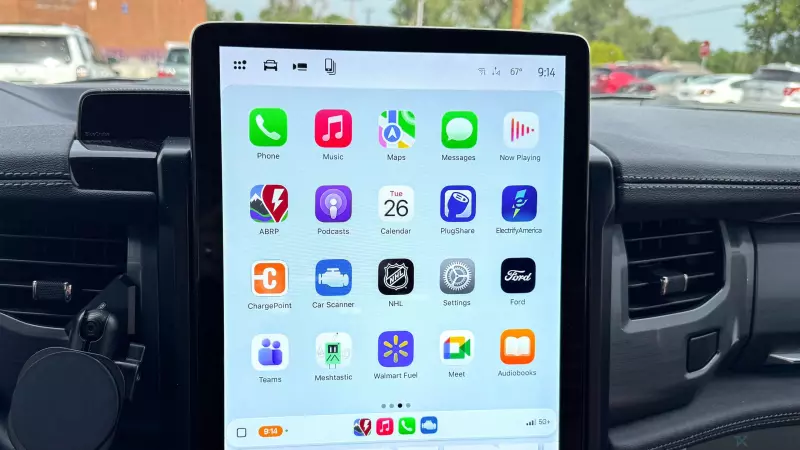
For many iPhone users, Apple CarPlay is an essential part of the driving experience, providing seamless access to navigation, music, and communication. However, there is a recurring frustration: the default layout. By default, CarPlay automatically displays every compatible app installed on your iPhone, regardless of whether you actually use them while driving. From sudden AI assistants like ChatGPT appearing on your home screen to a random assortment of third-party apps, the dashboard can quickly become a cluttered mess.
The frustration is compounded by the fact that the initial order of these apps often feels arbitrary. Having to scroll through pages of unused icons to find your favorite podcast app or navigation tool is not only annoying but can be a distraction. The good news is that you don't need to be sitting in your driver's seat to fix this. You can completely overhaul your CarPlay interface directly from your iPhone.
The Solution: Organizing Your Layout from Your Phone
Apple provides a dedicated menu within the iOS settings that allows users to curate exactly which apps appear on the car's display and in what specific order. This means you can remove the digital clutter and prioritize the tools you actually need for a safer, more efficient commute.
Step 1: Access Your iPhone Settings
The first step toward a cleaner dashboard starts on your mobile device. Open the Settings app. Because these changes are synced via your Apple ID and device pairing, you can perform these steps anywhere—at home, in the office, or even while lounging on the couch—without needing your car nearby.
Step 2: Navigate to General Settings
Once inside the Settings menu, scroll down and locate the General section. This is the hub for most of your device's core system configurations and is where the connectivity options for external interfaces are housed.
Step 3: Enter the CarPlay Menu and Select Your Vehicle
Within the General settings page, scroll down until you find CarPlay. Tapping this will open a list of all vehicles that have been previously paired with your iPhone. Select the specific car you wish to organize. This granular control is useful for users who may have different preferences for a personal vehicle versus a rental or a spouse's car.
Step 4: Manage Your App List
After selecting your vehicle, you will see a menu offering options to toggle CarPlay on or off, or to 'Forget This Car.' To fix the layout, select Apps. This screen displays every single app on your iPhone that supports the CarPlay interface.
Step 5: Customizing, Adding, and Rearranging
Now you have full control over your dashboard. Here is how to manage the apps:
- Removing Apps: If you see an app you never use (like a niche productivity tool or a newly added AI app), tap the red minus (-) button next to the app's name and select Delete. This removes it from the car's display without uninstalling it from your phone.
- Adding Apps: If there is a compatible app you've ignored but now want on your dashboard, simply tap the green plus (+) button to move it into the 'Included Apps' section.
- Rearranging the Order: To ensure your most-used apps are on the first page, use the three-line handle (hamburger icon) on the right side of each app. Press and hold, then drag and drop the app into your preferred sequence.
Note: Certain core system apps—such as Phone, Music, Maps, Messages, and Settings—are permanent fixtures and cannot be removed, ensuring you always have access to critical communication and navigation tools.
Instant Results for Your Next Drive
One of the best parts of this process is the synchronization. If you are currently connected to your car, you will see the icons disappear and rearrange in real-time. If you are not in your car, the changes are saved to your device profile. The next time you plug in your iPhone or connect wirelessly, your streamlined, organized home screen will be waiting for you, allowing you to focus more on the road and less on searching for icons.