The Robot Voice is Gone: How to Make Siri Sound Truly Human in iOS 27
Discover how to enable and customize the more natural, human-sounding voice for Siri in the latest iOS 27 update for iPhone.
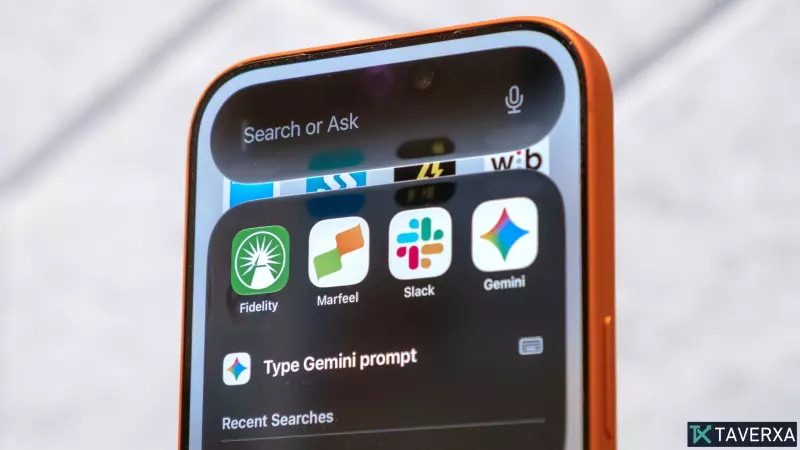
For years, Siri’s signature robotic cadence served as a telltale sign of its digital nature, creating a distinct barrier between human interaction and machine response. With the arrival of iOS 27, Apple has officially dismantled this mechanical facade. By integrating advanced generative audio models that mirror the subtle nuances of human speech, Apple has transformed its virtual assistant into a conversational partner that sounds startlingly lifelike.
A New Era of Voice Interaction
This significant leap in audio fidelity is designed to make daily interactions—from asking for weather updates to complex scheduling—feel fluid and natural. The technology is currently being deployed to users of the iPhone 17 Pro, iPhone 17 Pro Max, and the new iPhone Air. As the assistant shifts toward a more emotive and paced delivery, the days of the monotone robot voice appear to be numbered.
Getting Started with iOS 27
To unlock these cutting-edge features, your device must be running iOS 27 (specifically Beta 2 or later). Before upgrading, ensure you have backed up your data via Settings > [Your Name] > iCloud > iCloud Backup.
Users who have not previously participated in the Apple Beta Software Program may need to register for a free developer account at Apple's developer portal. Once registered and verified, navigate to Settings > General > Software Update > Beta Updates to begin your installation.
How to Customize Your Siri Voice
Once your iPhone is updated, you can configure your new human-like assistant by following these steps:
- Enable the Updated Assistant: Open Settings and tap on the Siri menu. If this is your first time accessing this post-update, you will be prompted to toggle on the new, upgraded version of Siri.
- Configure Expressive Voices: Navigate through the regional dialects and gender options to find a voice that suits your preference. Ensure the 'Expressive Voices Preview' toggle is enabled.
- Adjust Personalization Settings: You will now see sliders for 'Pace' and 'Expressivity.' The former allows you to dictate how quickly the assistant speaks, while the latter controls emotional inflection. Save your settings by tapping the blue check mark in the corner.
Editor's Note: Some users may see these sliders currently marked as 'coming soon,' as Apple intends to roll out these specific granular controls in an upcoming point release of iOS 27.