Maximize Your Apple Watch Battery Life: 3 Essential Settings to Disable Now
Stop your Apple Watch from dying mid-day. Discover 3 hidden settings to turn off to maximize battery life on Series 11, SE, and Ultra models.
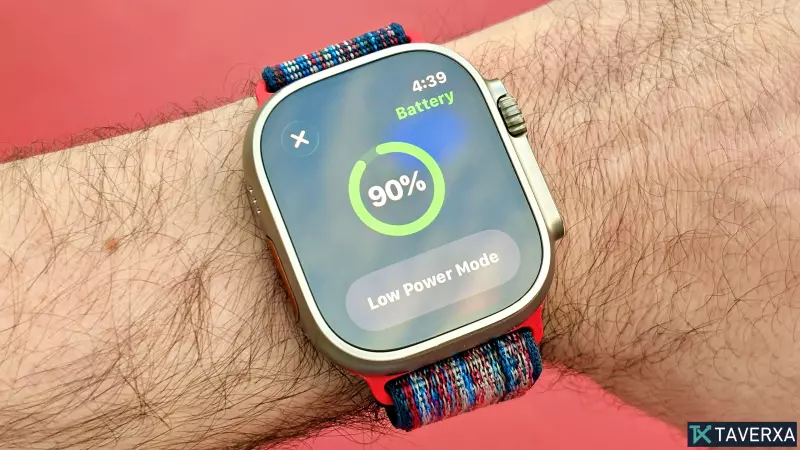
The Perpetual Struggle with Apple Watch Battery
Apple continues to lead the smartwatch market with cutting-edge health sensors, seamless integration, and stunning displays. However, for many users, the Achilles' heel of the experience remains the battery life. While the Apple Watch Ultra 3 offers a robust 42 hours of use, the Series 11 averages around 24 hours, and the SE 3 can dip as low as 18 hours per charge.
For most, the built-in 'Low Power Mode' is the go-to solution when the percentage drops. While effective—potentially extending the Series 11's life to 38 hours—it comes with a steep price: it disables the Always-On display and continuous heart rate monitoring. For those who want to keep their premium features active while still squeezing more juice out of their device, the secret lies in tweaking a few specific, often overlooked settings.
Whether you own the latest flagship or an older generation model, these three adjustments will help you extend your runtime without sacrificing the core utility of your watch.
1. Disable Background App Refresh
Many of the apps installed on your Apple Watch are designed to be "ready for you" the moment you raise your wrist. To achieve this, they use 'Background App Refresh,' which allows apps to update content and pull in new data even when you aren't actively using them.
For instance, a news app like AP News will constantly ping servers to ensure the latest headlines are waiting for you. While convenient, this constant background communication is a significant battery drain, especially if you have a large library of third-party applications. By turning this off, you may experience a few seconds of loading time when opening an app, but the trade-off in battery longevity is well worth it.
How to change it: Navigate to Settings > General > Background App Refresh and toggle the setting off.
2. Enable 'Reduce Motion'
Apple is renowned for its fluid user interface. The Apple Watch is filled with subtle animations, slides, and transitions that make navigating the OS feel polished and high-end. While visually appealing, these animations require additional processing power and energy.
By enabling 'Reduce Motion,' you strip away these non-essential visual flourishes. Surprisingly, the impact on the actual user experience is minimal—the watch still feels responsive, but it consumes less power to move between screens. It is an effortless way to save energy without altering how the watch functions.
How to change it: Go to Settings > Accessibility, scroll down to find Reduce Motion, and toggle it on.
3. Deactivate 'Optimize Charge Limit'
This is a more strategic choice regarding how you manage your power. The 'Optimize Charge Limit' feature is designed to protect the long-term health of your lithium-ion battery by preventing the watch from staying at 100% for extended periods, often capping the charge at 80%.
While this is excellent for the battery's lifespan over several years, it means you are starting every day with 20% less potential energy. If your primary goal is to get through a long day or a weekend without the charger, turning this off allows you to utilize the full capacity of your battery.
How to change it: Head to Settings > Battery > Battery Health and disable the optimize charge limit.
A Word of Caution: If you disable this feature, avoid leaving your watch on the charger overnight indefinitely. Modern Apple Watches charge rapidly—often hitting 100% in about an hour—so keeping an eye on the charging cycle will prevent premature battery degradation.
Final Thoughts
You don't need a specialized Ultra model to get better performance. By managing your background data, simplifying your visuals, and reclaiming your full battery capacity, you can significantly reduce your anxiety over the next charging cycle. Combine these tips with mindful usage of your Always-On display, and you'll find your Apple Watch lasting much longer between plugs.